Posted on

Adding recipients to quote (customer and admin emails) dynamically

// Add recipients to new quotes sent to admin by adding the following to functions.php
add_filter( ‘woocommerce_email_recipient_new_rfq’, ‘new_rfq_conditional_email_recipient’, 10, 2 );

function new_rfq_conditional_email_recipient( $recipient, $order ) {

$order_id=$order->get_id() ;

$some_field_name = get_post_meta( $order_id, “some_field_name”, true );

//add recipient based on order metadata
if ($some_field_name == “abc”) {
$recipient .= “, receipt_abc@somemail.com”;
}
elseif ($some_field_name == “xyz”){
$recipient .= “, receipt_xyz@somemail . com”;
}
//add recipient based on products in the order
$order = wc_get_order( $order_id );
$items = $order->get_items();
foreach ( $items as $item_id => $item ) {
$product_id = $item->get_variation_id() ? $item->get_variation_id() : $item->get_product_id();
if ( $product_id === 1 ) {
$recipient .= “, receiptprod1@somemail.com”;
}
if ( $product_id === 2 ) {
$recipient .= “, receiptprod2@somemail.com”;
}
}

return $recipient;
}

//You can repeat the same pattern for the following emails:
//email sent to customer
add_filter( ‘woocommerce_email_recipient_customer_rfq’, ‘customer_rfq_conditional_email_recipient’, 10, 2 );
function customer_rfq_conditional_email_recipient( $recipient, $order ) {
//follow the same pattern as above
}

//proposal email sent to customer
add_filter( ‘woocommerce_email_recipient_customer_rfq_sent’, ‘customer_rfq_sent_conditional_email_recipient’, 10, 2 );
function customer_rfq_sent_conditional_email_recipient( $recipient, $order ) {
//follow the same pattern as above
}
//email sent to admin for notes
add_filter( ‘woocommerce_email_recipient_admin_note’, ‘admin_note_conditional_email_recipient’, 10, 2 );
function admin_note_conditional_email_recipient( $recipient, $order ) {
//follow the same pattern as above
}

Posted on

How to enable quote request only to selected roles in WooCommerce.

cid:image001.png@01D64977.7C2EDC30

The following setup enables you to enable quote request checkout only to selected roles and allow others to buy and checkout normally.

If you need help setting it up, we can help.

Set the default setting to RFQ.

cid:image001.png@01D64977.7C2EDC30

In the roles, leave 4a blank and in 4b add the role(s) that can only request a quote. You have to create the role first.

cid:image002.png@01D64978.B1C46670

At the very bottom of the page, enter a label for people who can purchase(everybody else). This

Is the label for the cart button .

cid:image003.png@01D64978.B1C46670

In the labels section use “Add to Quote”

cid:image004.png@01D64978.B1C46670

And finally add this to the bottom of your functions.php

if(function_exists('gpls_woo_rfq_purchase_only')) {

    add_action('init', 'gpls_woo_rfq_check_role', 1);

    function gpls_woo_rfq_check_role()
    {
        $in_role = false;

        if (is_user_logged_in())
        {

            $user = wp_get_current_user();

            $user_roles = $user->roles;

            $eligible_roles = get_option('settings_gpls_woo_rfq_plus_visible_price_roles', 'no');

            $option_value_list = explode(',', $eligible_roles);

            foreach ($user_roles as $cat_id) {

                if (in_array(trim($cat_id), $option_value_list)) {
                    $in_role = true;
                }
            }
        }

        if($in_role == false){
            gpls_woo_rfq_purchase_only(); // user can see prices and purchase normally
        }


    }

}

Posted on

NP WooCommerce Quote Request “Add to Quote” Shortcode

With Plus version, in the normal checkout mode you can create a “add to quote” button with [gpls-woo-rfq-quote-button product_id=’115′ show_image=’yes’ image_size=’thumbnail’ show_title=’yes’ div_width=’200px’].
The sizes include thumbnail,shop_thumbnail, shop_catalog and shop_single.
The resulting image size depends on your shop settings for these images. The short code does not resize the image.

Posted on

How to have a custom form for each product or service in the NP WooCommerce Quote Request?

If you need a form ( or different forms for different types of products) in the product page, then if you can use the powerful WooCommerce product Add-Ons (which requires the Plus version) or our simple product extra fields. product extra fields does not requires the Plus version

The advantage of WooCommerce product add-on is you can attach a price to the extra fields. With extra fields, you cannot assign a price to the extra options or fields. Please note that in product page, the form is attached to that line item in the quote. By contrast the forms in the checkout pages, are attached to the whole order

Posted on

WooCommerce Quote Request “Normal Checkout” Setup

cid:image011.png@01D60F6E.B56913F0

cid:image011.png@01D60F6E.B56913F0


cid:image014.png@01D60F6E.B56913F0

Handle the labels for Purchase vs Quote in labels. Make the first 4 the way it is. Read and adjust the remaining labels too.

cid:image015.png@01D60F6E.B56913F0 cid:image016.png@01D60F6E.B56913F0

Navigate to Quote Request Page tab and make sure there is a url there for Request for Quote Page URL. Last, create a menu item for quote request page so people can see their quote request page.

cid:image017.png@01D60F6E.B56913F0

In the Plus version, you can assign the quote status to one or more product categories in the premium version. You would create the categories in WooCommerce. Assign the products to those categories as you would normally in WooCommerce. Then you mark those categories as quote items. You can still remove an individual product from the category by going to the advanced setup of that product.

Please note: to check the check this to apply the categories before saving every time you want to apply this setting. If you want to remove all categories, then delete all the categories from the select box, check the “apply the categories before saving” checkbox and save setting.

Posted on

Quote Request WooCommerce – File Upload

Customers using the file upload plugin can upload files in the following screens:

  • WooCommerce checkout for both regular orders and quote requests(RFQ checkout mode).
  • Quote request (Normal checkout)
  • In the thank you section, after a quote request or order has been submitted. The uploaded file will be linked to the order / quote just submitted.
  • Product page: link the upload to an item in the cart or quote request. The uploaded file shows in the cart and the WooCommerce checkout area. In the “normal checkout” mode, the file shows up in the quote request page.

  • My account orders area: Customer can click on an order and upload a file that gets linked to that order.

In the “Respond area”: when customer responds to a quote, they can also upload a file.

Posted on

Setup products as quote items by category in quote request for WooCommerce

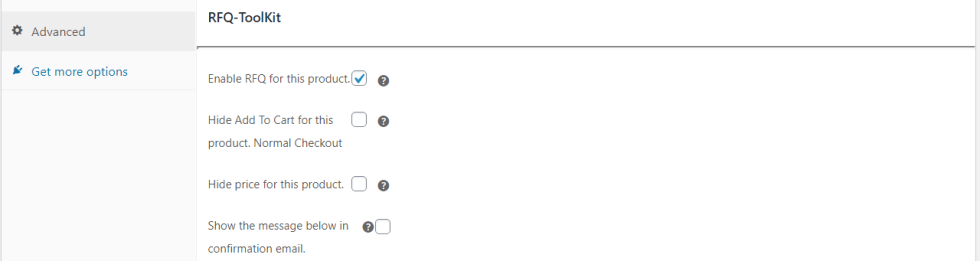
In the free version, you can mark an individual item as a quote item in the product advanced setup.

In the Plus version, you can assign the quote status to one or more product categories in the premium version. You would create the categories in WooCommerce. Assign the products to those categories as you would normally in WooCommerce. Then you mark those categories as quote items. You can still remove an individual product from the category by going to the advanced setup of that product.

Please note: to check the check this to apply the categories before saving every time you want to apply this setting. If you want to remove all categories, then delete all the categories from the select box, check the “apply the categories before saving” checkbox and save setting.

Posted on

Always include shipping address in quote emails

You can force the shipping address to show in the WooCommerce Quote Request plugin by checking this option in the proposal tab:

Please note: This will not add a shipping method to the order. It will only force the shipping address to show in the Quote emails sent to the customer and the store manager. Shipping method can be selected normally by the customer if you are in the RFQ mode. In the “normal mode”, the admin has to apply the shipping in the order edit screen.

Posted on

How to have a Request Quote only for selected items?

You can have a Request Quote only for selected items in the NP Quote Request WooCommerce plugin. 

Navigate to WooCommerce->settings->RFQ Toolkit->general tab and choose “Normal checkout” in option 1.

Setup a product as a quote item:

Navigate to product advanced setup and check the following as shown below and save.

The setup shows as below in the shop and single product pages.